

Televizo App (2026 Guide) – Download, Install, Setup & Fix Common Issues
Category: IPTV AppTelevizo App (2026 Guide) – Download, Install, Setup & Fix Common Issues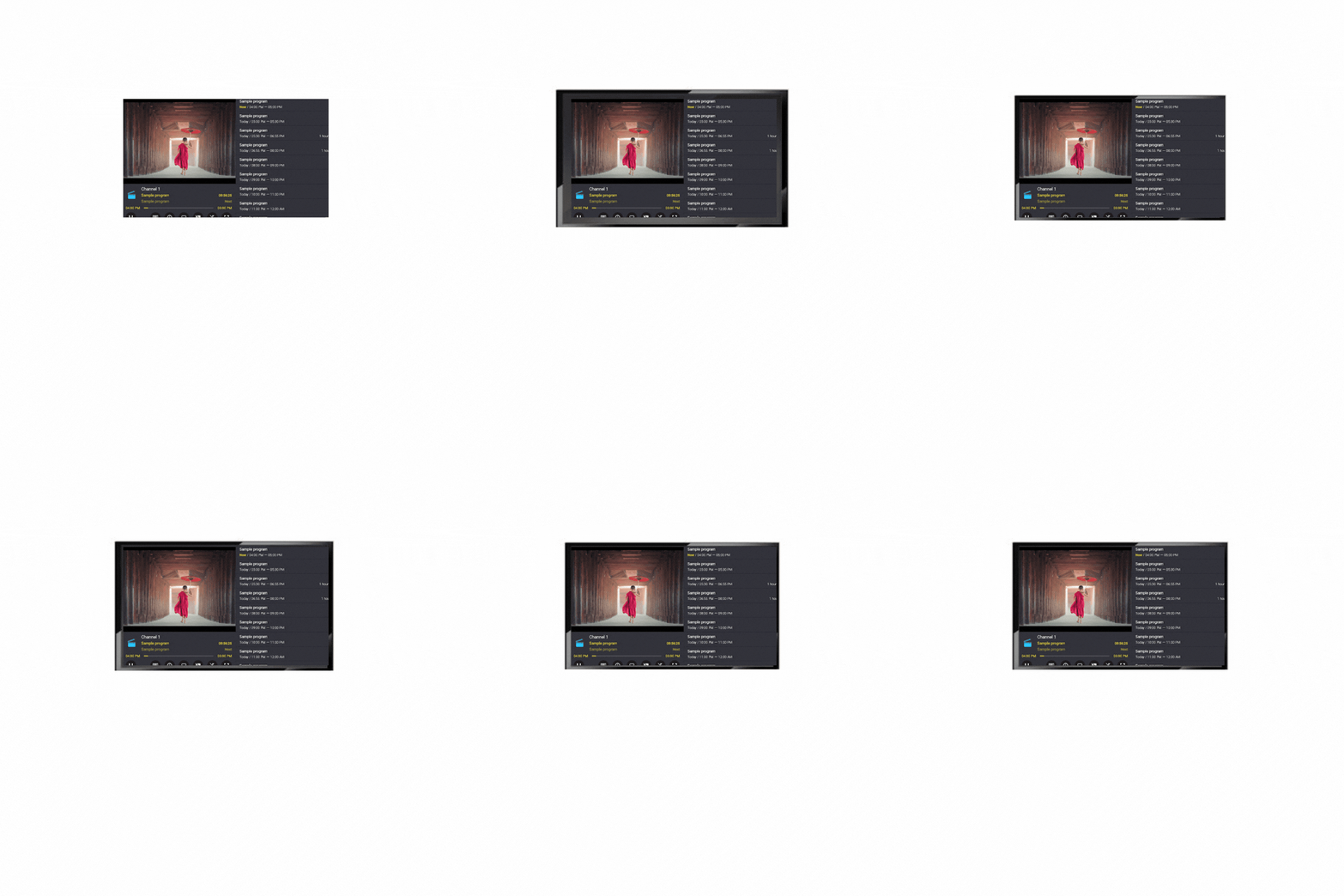
🕒 Estimated Reading Time: 3–4 minutes, or get it fixed properly without the guesswork.
You are searching for the Televizo app, you know very well about it as it is one of the most clear, simple, lightweight, and does not overload your device like other IPTV apps.
The Televizo app is very powerful, but a small missed step can stop everything from working. If you want instant fixes without wasting time, click here to get it fixed. If you want to understand how it works fully, let's understand here.
What Is Televizo?
Televizo is an IPTV media player, but it does not mean it gives you channels, free TV, or playlists. Whatever you provide to Televizo, it only plays that. So it depends on your IPTV provider mostly. If your subscription is inactive or if you make login mistakes, it opens fine, but nothing loads. This single concept helps you understand most of the problem. That’s it.
Televizo App Download (Android & Android TV)
The Televizo app can be installed on Android phones, Android TV, Fire TV Stick, and some TV boxes. Yes, it is a good fit on all devices, but keep in mind a few things before installing: remove any old or cracked versions because they cause errors, make sure storage isn’t full, and restart the device once. If you try to install multiple Televizo versions at the same time, it causes crashes and missing channels issues.
If you’re looking for Televizo APK download or Televizo free download, here’s what you need to know:
Working APK and a broken or harmful APK both are different things. Before choosing the right APK, see carefully and avoid things that claim:
● “Premium unlocked” mods
● Cracked versions claiming free subscriptions
● Sites with redirected ads and fake buttons
Broken or harmful APKs first install fine but stop working after a few times or after an update, crash randomly, or worse — carry malware.
So it's better to choose safe options:
● Download the official Televizo APK from a trusted source
● Make sure it matches your device (Android TV, Android box, Firestick sideloading, etc.)
But wait If you’re unsure which file is the right one? Don’t worry. Get it fixed properly and avoid frustration.
How to Set Up Televizo Properly
Most “Televizo not working” problems are setup mistakes.
Step 1: Choose Login Type
After installing, the next step is to log in to your Televizo, which usually asks for details like. Username, Password, Server URL (Xtream Codes). Here is the most important thing: enter details carefully, one extra space, one wrong character means no channel load. After entering all details correctly, if the playlist doesn't show up, don't be frustrated. There may be some other technical issue, so instead of trying random fixes, get it fixed properly.
Step 2: Enter Details Carefully
You open Televizo, and it's empty, don't worry. Televizo, for the first, looks empty. And it's normal.
First contact with your IPTV provider and get one of the following,
● An M3U playlist link
● Xtream Codes login (server URL, username, password)
open Televizo :
● Select Add Playlist
● Choose M3U or Xtream Codes
● Enter the details provided by your IPTV provider
Here is the most important thing: enter details carefully, one extra space, one wrong character means no channel load. After entering all details correctly, if the playlist doesn't show up, don't be frustrated. There may be some other technical issue, so instead of trying random fixes, get it fixed properly.
Step 3: Let It Sync Fully
When you login the app successfully after login, wait until channels fully load, do not exit the app after a few seconds, let the EPG load fully. This step is also very important because if you interrupt this step, you may see empty channel lists, Missing guide data, and channels that don’t open.
If this happens again, and again get it fixed properly.
Televizo Free vs Televizo Premium
Some versions of Televizo (especially on Android TV or iOS) have paid upgrade options. This paid upgrade gives you add free Televizo, extra layout options, Multi-screen views, and advanced EPG features.
Price is different for devices and platforms. You only need to purchase one time on google play store or through in-app purchases.
If you want to handle Large playlists, Multiple users, and custom layouts, then go for the upgrade option; otherwise, it's okay to stay on the free version.
Common Televizo Problems (And What They Actually Mean)
Step 4: Common Problems You Can Face and reason behind it
While using Televizo, you often see one of these issues. Here is the list of problems, so you don't get frustrated anymore and really know the reason behind it.
Channels load but won’t play.
→ your subscription has expired, or the playlist is blocked
Guide not updating
→ Provider’s EPG issue
App freezes on startup
→the playlist or device memory
Buffering occurs on every channel
→ Network or provider limits
After solving thousands of customers' issues, we have found that most users try to reinstall Televizo, but it doesn't make any of these issues better. Try to solve the source of the problem.
Conclusion
Televizo is an IPTV media player, but it does not mean it gives you channels, free TV, or playlists. Whatever you provide, it only plays that. So it depends on your IPTV provider mostly. If your subscription is inactive or if you make login mistakes, it opens fine, but nothing loads. This single concept helps you understand most of the problem.
Most “Televizo not working” problems are setup mistakes. One extra space, one wrong character means no channel load. If you interrupt the sync step, you may see empty channel lists, missing guide data, and channels that don’t open.
After solving thousands of customers' issues, we have found that most users try to reinstall Televizo, but it doesn't make any of these issues better. Try to solve the source of the problem. If you want instant fixes without wasting time, click here to get it fixed.